
As a business owner, you know the sinking feeling. You open a spreadsheet you have been working on for weeks, and the data is wrong. Or perhaps you open a proposal folder to find it empty because a team member accidentally hit “delete.”
In the past, this meant calling your IT support team in a panic. You would have to wait for them to find a backup tape or a digital archive from the night before. You would lose a full day of work. It was stressful, expensive, and slow.
Today, modern cloud tools like Microsoft OneDrive and SharePoint have changed the game. They offer a feature called Version History. It acts like a time machine for your files. If you know how to use it, you can fix these problems yourself in minutes.
In this guide, we will walk you through how to use these tools. We will also look at why this matters for your business continuity and where the limits of this technology lie.
Understanding the Business Risk of file Loss
Before we get into the technical steps, let’s look at the risk. Why do files disappear or change?
It is rarely malicious. Most often, it is simple human error. A team member overwrites a good file with a bad one. Someone drags a folder into the wrong place by mistake.
However, the risk profile has changed. Today, businesses in Chicago and across the globe face the threat of ransomware. In a ransomware attack, a criminal’s software encrypts your files. It turns your useful data into scrambled gibberish unless you pay a ransom.
Version history is one of your first lines of defense. Because OneDrive and SharePoint save older versions of your files automatically, you can sometimes “undo” the damage of ransomware. You can simply roll back the file to the version from five minutes before the attack happened.
This does not replace a full backup strategy. But it is a powerful tool for immediate recovery.
How Version History Works
Think of your digital files like a stack of paper. Every time you hit “save,” or every time the system auto-saves, it puts a new piece of paper on top of the stack.
Most of the time, you only see the top piece of paper. That is the current version. But the software keeps the older pieces of paper underneath, just in case.
This happens in the background. You do not need to turn it on, provided your IT team has configured your environment correctly. It works for Word documents, Excel spreadsheets, PowerPoint presentations, and even PDFs.
Step-by-Step: Recovering a Previous Version
You can handle this process right from your web browser. You do not need administrative rights or special technical skills.
Here is the process for restoring a single file:
- Open your web browser and log into your Microsoft 365 portal (OneDrive or SharePoint).
- Navigate to the folder containing the file you need to fix.
- Hover your mouse over the file name. You will see three small dots (an ellipsis) appear next to the name, or you can right-click the file name.
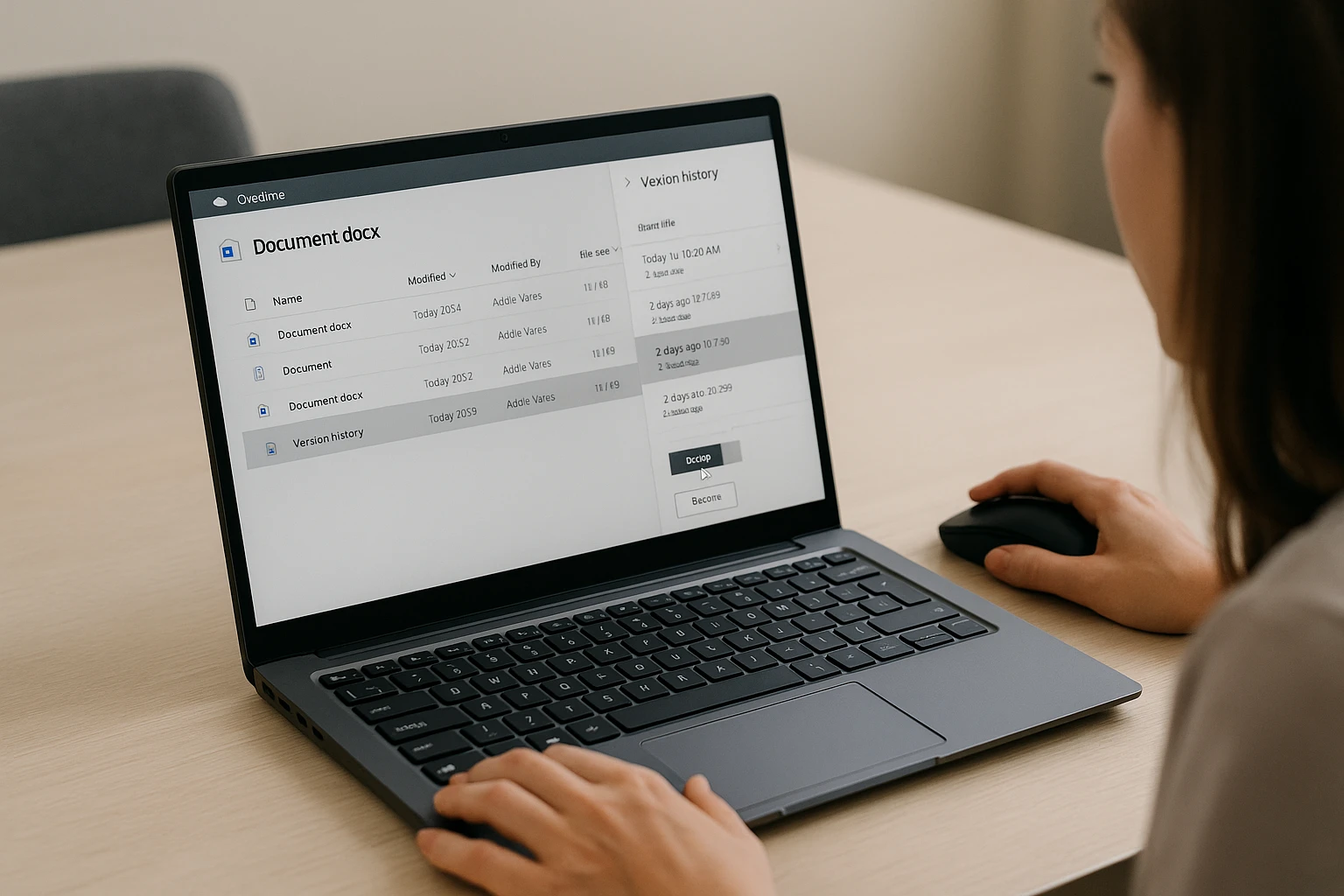
- In the menu that pops up, click on Version history.
- A comprehensive list will slide out on the right side of your screen. It shows dates, times, and the names of the people who modified the file.
- Find the version you want. It usually helps to look at the “Modified By” date. If you know the error happened today at 2:00 PM, look for a version from 1:30 PM.
- Click the three dots next to that specific date.
- Select Restore.
The system will now make that older version the “current” one. It does not delete the bad version you just replaced; it simply adds the restored one to the top of the stack.
Viewing Before Restoring
Sometimes you are not sure which version is the right one. You don’t want to restore a file only to find out it is six months old.
You can view the file first. When you open the Version history list, click on the date itself (the blue link) instead of clicking “Restore.” This will open that specific version of the file in your browser. You can read it to make sure it has the data you need. If it is the right one, close it and proceed with the restore steps above.
Recovering Deleted Files
What if the file isn’t just changed, but gone completely?
When you keep files on a local server in your office, deleting a file usually removes it immediately. In the cloud, you have a safety net called the Recycle Bin.
- Navigate to the OneDrive or SharePoint website.
- Look at the left-hand navigation menu. You should see Recycle bin.
- Click it to see a list of deleted items.
- Check the box next to the file or folder you want to bring back.
- Click Restore at the top of the page.
The file will return to the exact location it was deleted from.
Important Note: Items in the Recycle Bin do not stay there forever. By default, they are usually kept for 93 days. After that, they are permanently removed. If you realize you are missing a file from last year, this method will not work.
Business Continuity and Mass Recovery
Recovering one file is easy. But what happens if a disgruntled employee deletes a thousand files? Or what if ransomware corrupts an entire project folder?
Clicking “Restore” on one thousand individual files would take weeks. You do not have time for that.
SharePoint and OneDrive have a feature often called “Restore your OneDrive” or “Restore this library.” This serves as a mass undo button.
- You can select a timeframe (e.g., “Yesterday,” “One week ago,” or a custom date).
- The system creates a graph of activity. You can see big spikes in activity, which often indicate when the damage happened.
- You can slide the recovery point to right before that spike.
When you click restore, the system rolls back every change made after that moment. It effectively reverses time for that entire storage library.
Warning: This undoes good work too. If your team did legitimate work this morning, but you roll the library back to yesterday to fix an error, today’s work will be lost. You must weigh the pros and cons carefully.
Technical Controls and Limitations
While Version History is excellent, it is not magic. As a business owner, you need to understand the limitations so you are not caught off guard.
1. Storage Limits
Every version of a file takes up space. If you have a 10MB PowerPoint presentation and you edit it 100 times, you are using a significant amount of digital storage.
Some IT providers or internal IT staff will turn off Version History limits to save money on storage. They might limit you to only the last 5 versions. If they do this, you might not be able to go back far enough to fix a problem.
We recommend enabling at least 500 major versions for our clients. Storage is relatively cheap; your data is priceless.
2. It Is Not a Backup
This is the most critical takeaway. Version History is not a backup.
A backup is an independent copy of your data, stored in a separate location, that cannot be altered easily.
If a hacker gains access to your administrative account, they can delete your files. Then, they can go into the Version History and delete the old versions. Finally, they can empty the Second-Stage Recycle Bin.
If that happens, and you rely solely on Microsoft’s built-in tools, your data is gone. Permanent deletion is instant.
To truly protect your organization, you need a third-party backup service. This service copies your cloud data to a completely different vault. Even if your main office environment burns down digitally, the third-party backup remains safe. We call this “immutable” storage.
3. Sync Issues
Many business owners get confused between “syncing” and “backing up.”
When you use OneDrive on your laptop, the files sync to the cloud. If you get a virus on your laptop that deletes your files, the sync tool sees that you deleted the files. It assumes you did it on purpose. It sends a command to the cloud: “Delete these files.”
The bad changes replicate instantly. Version History helps you recover, but don’t fall into the trap of thinking that because files are in the cloud, they are safe from local viruses. They are connected.
Best Practices for Owner-Led Businesses
You are responsible for the stewardship of your company’s data. Here is a checklist to ensure you are using these tools effectively.
- Audit your settings. Ask your IT consultant to confirm how many versions are being kept. Ensure it is at least 500.
- Train your team. Your staff should know how to restore their own files. This empowers them to fix simple mistakes without waiting for IT support. It saves the business money on support tickets.
- Secure the accounts. If a criminal gets your password, they can destroy your version history. You must have Multi-Factor Authentication (MFA) enabled on every single account. No exceptions.
- Test the “Big Restore.” Ask your IT partner to demonstrate a mass restore in a test environment. You want to know how long it takes before you have a crisis.
When to Call for Help
While you can handle simple file recovery, there are times you should reach out to your Secure IT Support team immediately.
- Ransomware signs: If you see files with strange names or “.crypt” extensions, do not try to fix it yourself. Disconnect the computer from the network and call for help. You need to preserve evidence and ensure the infection doesn’t spread.
- Missing massive folders: If an entire department’s data vanishes, this could be a malicious act or a server sync error. IT logs will show who deleted it and why.
- Compliance issues: If you are in a regulated industry (like finance or healthcare), recovering old data might have legal implications. Ensure you aren’t restoring sensitive data that was deleted for legal reasons.
Reducing Business Risk
Cybersecurity is not just about firewalls and hackers. It is about availability. If your team cannot get to their files, your business stops running.
Version History is a fantastic convenience feature. It solves the “oops” moments that happen in every office. It keeps your team productive and lowers your stress levels.
However, do not let it give you a false sense of security. It is one layer of a proper defense strategy. It sits alongside backup, endpoint protection, and proper identity management.
You have built a successful business. You have assets to protect. By understanding simple tools like Version History, you take control of your daily operations. By layering professional backup and security on top of that, you ensure your business can survive the worst-case scenarios.
If you would like to roll out enterprise-grade IT management at your business, please schedule a discovery call with us.